Jumat, 09 Maret 2012

(Insert) TextBox / Variable into Crystal Report Parameter (Code in .Net)

1) Add/ Tambahkan Crystal  Report dan CrystalReportViewer ke dalam Form project Anda
2) pada
Crystal  Report tambahkan field parameter, contoh kita beri nama "Nomor" Field.

3) Lalu Masukan field parameter "nomor" tadi kedalam crystalreport
4)
Nanti dalam crystal report  akan terlihat - "?nomor"
5) Tuliskan syntax berikut dalam form dimana anda meletakan
CrystalReportViewer 
    
  CODE :
private sub print()
Dim pvCollection As New CrystalDecisions.Shared.ParameterValues()
Dim pdvFrom As New CrystalDecisions.Shared.ParameterDiscreteValue()
Dim ObjectRpt As New CryStalreport1
Dim CryData As New CrystalReportViewer1

pdvFrom.Value = textbox1.text       ' value parameter field
      
 pvCollection.Add(pdvFrom)           ' add value
ObjectRpt.DataDefinition.ParameterFields("nomor").ApplyCurrentValues(pvCollection)
CryData.ReportSource = ObjectRpt
 CryData.Refresh()
End Sub


..::S E L A M A T  M E N C O B A::..

Rabu, 07 Maret 2012

Memberi Warna pada Section Detail (Record) Crytal report

Memberi warna pada section detail (record) kadang sangat diperlukan untuk mempermudah user membaca laporan,,

PREVIEW :


Ok. berikut caranya :
1.  Klik Kanan pada section(details), Pilih section expert
 2. pilih "details" pada kolom section, pilih color pada kolom sebelah kanan lalu centang background color


 3. Buat formula baru,setelah Masuk formula Editor, pada kolom sebelah kiri pilih "Formating Formula=>Details", lalu klik kanan,terus pilih "New Formating Formula=>background color" klik use editor
4. Dalam code editor ketik formula serti ini :

if RecordNumber mod 2=0 then crSilver else crNoColor

5. Simpan dan tutup Editor
6. Kemudian jalankan report

Selamat mencoba.


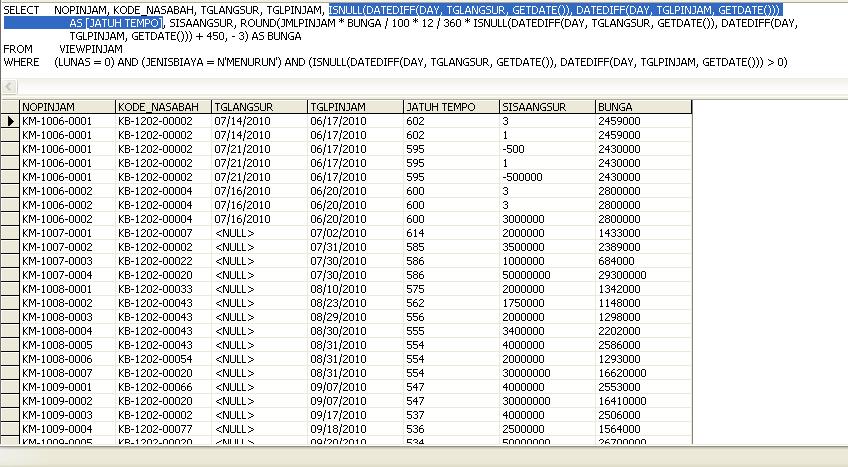
Fungsi ISNULL Dalam Ms SQL

Fungsi   dari IS NULL  itu sendiri adalah Menggantikan NULL dengan nilai pengganti yang ditentukan..
  
SYNTAX :

ISNULL ( EKSPRESI ,NILAI PENGGANTI ) 


KETERANGAN :
EKSPRESI : Ekspresi berisi nilai/field yang akan di cek, Bila Nilai/Field is null maka nilai/field akan diganti
                     dengan PENGGANTI.


CONTOH:

SELECT     NOPINJAM, KODE_NASABAH, TGLANGSUR, TGLPINJAM,
 ISNULL(DATEDIFF(DAY, TGLANGSUR, GETDATE()), DATEDIFF(DAY, TGLPINJAM, GETDATE())) AS [JATUH TEMPO], SISAANGSUR, ROUND(JMLPINJAM * BUNGA / 100 * 12 / 360 * ISNULL(DATEDIFF(DAY, TGLANGSUR, GETDATE()), DATEDIFF(DAY,
                      TGLPINJAM, GETDATE())) + 450, - 3) AS BUNGA
FROM         VIEWPINJAM
WHERE     (LUNAS = 0) AND (JENISBIAYA = N'MENURUN') AND (ISNULL(DATEDIFF(DAY, TGLANGSUR, GETDATE()), DATEDIFF(DAY, TGLPINJAM, GETDATE())) > 0)

 HASIL:


Perhatikan Syntax yg diblok biru, Maksud dari syntax tersebut adalah menghitung jumlah hari keterlambatan(jatuh Tempo) dengan parameter fungsi Is Null "TGLANGSUR", Bila "TGLANGSUR" Is Null maka parameter penghitungan hari diambil dari "TGLPINJAM" dan apa bila "TGLANGSUR" Is Not Null maka parameter penghitungan hari diambil dari "TGLANGSUR"..

OK, Untuk lebih jelas nya Perhatikan Blok warna dalam syntax diatas:
=> Blok HIJAU : * adalah fungsi menghitung hari dengan parameter "TGLANGSUR"
                            * bila "TGLANGSUR" Is Null Maka otomatis fungsi datediff ga jalan
                            * dan hasilnya field alias "JATUH TEMPO" = Is Null
                            * dan apabila "TGLANGSUR" Is Not Null maka penghitungan hari (fungsi gatediff) 
                               diambil dari "TGLANGSUR"
=> Setelah Pengecekan diatas maka diketahui Parameternya Is Null atau Is Not Null, Jika Is Not Null Maka Blok HIJAU yg akan dibaca, dan Jika Is Null Maka yg akan dibaca adalah fungsi getediff yg kedua (Blok HITAM), dengan parameter "TGLPINJAM"...


Wes ah penjelasane, Kesel,ngeleh,,,,,
Paham KarepMU ora paham Yo Matamu....jenenge ae ngoding sak karepe deweeeeeeeeee

hehehehe... Guyon Um,,, Pastilah anda lebih paham daripada saya... 

OK, Semoga Bermanfaat....!!!!!
 

Senin, 05 Maret 2012

Multi coloum ComboBox .Net

Preview :


 Berikut Cara menambahkan kolom pada ComboBox , monggo download ae contohe:
Download Project

Multibox(user Control) :

Imports System.Math
Imports System.Drawing
Imports System.Windows.Forms

Public Class Multibox

#Region "Dimensions"
    Dim charSeperator As Char = ","         'Character seperation in the main box
    Dim intSelectedItem As Int16 = 0        'Index of the currently selected item
#End Region

#Region "Properties"

    Public Property Seperator() As Char     'The column seperator property
        Get
            Return charSeperator
        End Get
        Set(ByVal value As Char)
            charSeperator = value
        End Set
    End Property

    'Hide this property from designer window
    <System.ComponentModel.Browsable(False)> _
    ReadOnly Property Columns() As ListView.ColumnHeaderCollection      'Columns in the Listview
        Get
            Return ListView1.Columns
        End Get
    End Property

    'Hide this property from designer window
    <System.ComponentModel.Browsable(False)> _
    ReadOnly Property Items() As ListView.ListViewItemCollection        'Items in the listview
        Get
            Return ListView1.Items
        End Get
    End Property

#End Region

#Region "Show list"

    Private Sub Button1_Click(ByVal sender As Object, ByVal e As System.EventArgs) Handles Button1.Click
        'Hide and show the listview as the drop list for the box
        If ListView1.Visible Then
            ListView1.Visible = False
            Me.Height = Me.Height - ListView1.Height - 5
        Else
            ListView1.Left = TextBox1.Left
            ListView1.Width = TextBox1.Width
            ListView1.Top = TextBox1.Bottom
            ListView1.Visible = True
            Me.Height = Me.Height + ListView1.Height + 5
            ListView1.Items(intSelectedItem).Selected = True
        End If

    End Sub

    Private Sub TextBox1_Click(ByVal sender As Object, ByVal e As System.EventArgs) Handles TextBox1.Click
        Button1_Click(sender, e)
    End Sub

    Private Sub ListView1_Click(ByVal sender As Object, ByVal e As System.EventArgs) Handles ListView1.Click
        Button1_Click(sender, e)
    End Sub

#End Region

#Region "Select Item"

    Private Sub ListView1_ItemSelectionChanged(ByVal sender As Object, ByVal e As System.Windows.Forms.ListViewItemSelectionChangedEventArgs) Handles ListView1.ItemSelectionChanged
        Try
            'Set the selected index number
            intSelectedItem = ListView1.SelectedItems(0).Index

            'Set the count to 0 for Item seperator
            Dim i As Int16 = 0

            'Loop through the items and get the values
            For Each tmpItem In ListView1.SelectedItems(0).SubItems
                If i = 0 Then
                    TextBox1.Text = tmpItem.Text
                Else
                    TextBox1.Text += charSeperator & " " & tmpItem.Text
                End If
                i += 1
            Next
        Catch ex As Exception
            'Just leave the exception and move on.
        End Try
    End Sub

#End Region

#Region "Fade in and out"

    Private Sub TextBox1_MouseEnter(ByVal sender As Object, ByVal e As System.EventArgs) Handles TextBox1.MouseEnter
        Fade(Button1, True)
    End Sub

    Private Sub TextBox1_MouseLeave(ByVal sender As Object, ByVal e As System.EventArgs) Handles TextBox1.MouseLeave
        Fade(Button1, False)
    End Sub

    Private Sub Button1_MouseEnter(ByVal sender As Object, ByVal e As System.EventArgs) Handles Button1.MouseEnter
        Dim cntrl As Control = CType(sender, Control)
        Fade(cntrl, True)
    End Sub

    Private Sub Button1_MouseLeave(ByVal sender As Object, ByVal e As System.EventArgs) Handles Button1.MouseLeave
        Dim cntrl As Control = CType(sender, Control)
        Fade(cntrl, False)
    End Sub

    Private Sub Fade(ByVal ctrl As Control, ByVal hovering As Boolean)
       

        Dim Sb_R, Sb_G, Sb_B As Int16 '           <--- RGB values for the starting backcolor
        Dim Sf_R, Sf_G, Sf_B As Int16 '           <--- RGB values for the starting forecolor
        Dim Eb_R, Eb_G, Eb_B As Int16 '           <--- RGB values for the ending backcolor
        Dim Ef_R, Ef_G, Ef_B As Int16 '           <--- RGB values for the ending forecolor

        Select Case hovering  ' True for MouseEnter, False for MouseLeave
            Case True
                Sb_R = SystemColors.Window.R           ' Assign the variables the
                Sb_G = SystemColors.Window.G           ' appropriate values based
                Sb_B = SystemColors.Window.B           ' on system-defined colors
                '                                         for control and control
                Sf_R = SystemColors.Window.R       ' text.
                Sf_G = SystemColors.Window.G
                Sf_B = SystemColors.Window.B

                Eb_R = SystemColors.ActiveCaption.R     ' Assign the variables the
                Eb_G = SystemColors.ActiveCaption.G     ' appropriate values based
                Eb_B = SystemColors.ActiveCaption.B     ' on system-defined colors
                '                                         for the title bar and the
                Ef_R = SystemColors.ActiveCaptionText.R ' title bar's text.
                Ef_G = SystemColors.ActiveCaptionText.G
                Ef_B = SystemColors.ActiveCaptionText.B
            Case False
                Sb_R = SystemColors.ActiveCaption.R     ' Assign the variables the
                Sb_G = SystemColors.ActiveCaption.G     ' appropriate values based
                Sb_B = SystemColors.ActiveCaption.B     ' on system-defined colors
                '                                         for the title bar and the
                Sf_R = SystemColors.ActiveCaptionText.R ' title bar's text.
                Sf_G = SystemColors.ActiveCaptionText.G
                Sf_B = SystemColors.ActiveCaptionText.B

                Eb_R = SystemColors.Window.R           ' Assign the variables the
                Eb_G = SystemColors.Window.G           ' appropriate values based
                Eb_B = SystemColors.Window.B           ' on system-defined colors
                '                                         for control and control
                Ef_R = SystemColors.Window.R       ' text.
                Ef_G = SystemColors.Window.G
                Ef_B = SystemColors.Window.B
        End Select

        Dim b_RIncrement As Int16 = Round(((Eb_R - Sb_R) / 16), 0)      ' Find the increments that
        Dim b_GIncrement As Int16 = Round(((Eb_G - Sb_G) / 16), 0)      ' the RGB values will take;
        Dim b_BIncrement As Int16 = Round(((Eb_B - Sb_B) / 16), 0)      ' 1/16th of the difference
        '                                                                 between the start and end
        Dim f_RIncrement As Int16 = Round(((Ef_R - Sf_R) / 16), 0)      ' values, rounded to the
        Dim f_GIncrement As Int16 = Round(((Ef_G - Sf_G) / 16), 0)      ' nearest integer.
        Dim f_BIncrement As Int16 = Round(((Ef_B - Sf_B) / 16), 0)

        Dim bR As Int16 = Sb_R ' \
        Dim bG As Int16 = Sb_G '  }--  the RGB values for the backcolor as it changes.
        Dim bB As Int16 = Sb_B ' /

        Dim fR As Int16 = Sf_R ' \
        Dim fG As Int16 = Sf_G '  }--  the RGB values for the forecolor as it changes.
        Dim fB As Int16 = Sf_B ' /

        Dim count As Int16
        For count = 0 To 14
            bR += b_RIncrement          ' Add the appropriate increments to the
            bG += b_GIncrement          ' RGB values.  The result is a nifty
            bB += b_BIncrement          ' "cross-fade" effect.
            fR += f_RIncrement
            fG += f_GIncrement
            fB += f_BIncrement

            'ctrl.BackColor = Color.FromArgb(bR, bG, bB)   ' Repaint the button using the
            ctrl.ForeColor = Color.FromArgb(fR, fG, fB)   ' current RGB values, and refresh
            ctrl.Refresh()                                ' the button.

            Threading.Thread.Sleep(30 - (count * 2))      ' Wait a certain number of milliseconds,
            '                                               which is a factor of the current count.
            '                                               I tweaked these numbers to get a decent
            '                                               effect; feel free to adjust these
            '                                               numbers to achieve an effect you like.
        Next
        Select Case hovering
            Case True
                ctrl.BackColor = SystemColors.ActiveCaption         ' Finish the effect by painting
                ctrl.ForeColor = SystemColors.ActiveCaptionText     ' the control with it's final
            Case False                                              ' look, depending on whether
                ctrl.BackColor = SystemColors.Window               ' we're fading in or out.
                ctrl.ForeColor = SystemColors.Window
        End Select
    End Sub

#End Region

#Region "Component resize and new"

    Private Sub Multibox_Resize(ByVal sender As Object, ByVal e As System.EventArgs) Handles Me.Resize
        If ListView1.Visible = False Then
            Me.Height = 26
        End If
    End Sub

    Public Sub New()

        ' This call is required by the Windows Form Designer.
        InitializeComponent()

        ' Add any initialization after the InitializeComponent() call.
        ListView1.MultiSelect = False
        ListView1.FullRowSelect = True
    End Sub

#End Region

    Private Sub TextBox1_TextChanged(ByVal sender As System.Object, ByVal e As System.EventArgs) Handles TextBox1.TextChanged

    End Sub
End Class
 

Form:

        Multibox1.Columns.Add("Nama")
        Multibox1.Columns.Add("Panggilan")

        Multibox1.Items.Add("Mas Semar")
        Multibox1.Items(0).SubItems.Add("Semar")
        Multibox1.Items.Add("Petruk")
        Multibox1.Items(1).SubItems.Add("Truk")


Minggu, 04 Maret 2012

BACKUP RESTORE DATABASE MS SQL SERVER (CODE IN VB.NET)

PREVIEW :


DOWNLOAD CONTOH PROJECT


CODE :

Imports System.Data.SqlClient
Public Class Form1
    Dim con, con1 As SqlConnection
    Dim cmd As SqlCommand
    Dim dread As SqlDataReader
  
    Private Sub Form1_Load(ByVal sender As System.Object, ByVal e As System.EventArgs) Handles MyBase.Load
        server(".")
        server("IC-COMP")
    End Sub
    Sub server(ByVal str As String)
        con = New SqlConnection("Data Source=" & str & ";Database=Master;integrated security=SSPI;")
        con.Open()
        cmd = New SqlCommand("select *  from sysservers  where srvproduct='SQL Server'", con)
        dread = cmd.ExecuteReader
        While dread.Read
            cmbserver.Items.Add(dread(2))
        End While
        dread.Close()
    End Sub
    Sub connection()
        con = New SqlConnection("Data Source=" & Trim(cmbserver.Text) & ";Database=Master;integrated security=SSPI;")
        con.Open()
        cmbdatabase.Items.Clear()
        cmd = New SqlCommand("select * from sysdatabases", con)
        dread = cmd.ExecuteReader
        While dread.Read
            cmbdatabase.Items.Add(dread(0))
        End While
        dread.Close()
    End Sub

    Private Sub cmbserver_SelectedIndexChanged(ByVal sender As System.Object, ByVal e As System.EventArgs) Handles cmbserver.SelectedIndexChanged
        connection()
    End Sub
    Sub query(ByVal que As String)
        On Error Resume Next
        cmd = New SqlCommand(que, con)
        cmd.ExecuteNonQuery()
    End Sub
    Private Sub Timer1_Tick(ByVal sender As System.Object, ByVal e As System.EventArgs) Handles Timer1.Tick
        If ProgressBar1.Value = 100 Then
            Timer1.Enabled = False
            ProgressBar1.Visible = False
            MsgBox("SUKSES")
        Else
            ProgressBar1.Value = ProgressBar1.Value + 5
        End If
    End Sub
    Sub blank(ByVal str As String)
        If cmbserver.Text = "" Or cmbdatabase.Text = "" Then
            MsgBox("SERVER & Database KOSONG")
            Exit Sub
        Else
            If str = "backup" Then
                SaveFileDialog1.FileName = cmbdatabase.Text
                SaveFileDialog1.ShowDialog()
                Timer1.Enabled = True
                ProgressBar1.Visible = True
                Dim s As String
                s = SaveFileDialog1.FileName
                query("backup database " & cmbdatabase.Text & " to disk='" & s & "'")
            ElseIf str = "restore" Then
                OpenFileDialog1.ShowDialog()
                Timer1.Enabled = True
                ProgressBar1.Visible = True
                query("RESTORE DATABASE " & cmbdatabase.Text & " FROM disk='" & OpenFileDialog1.FileName & "'")
            End If
        End If
    End Sub
    Private Sub cmbbackup_Click(ByVal sender As System.Object, ByVal e As System.EventArgs) Handles cmbbackup.Click
        blank("backup")
    End Sub

    Private Sub cmdrestore_Click(ByVal sender As System.Object, ByVal e As System.EventArgs) Handles cmdrestore.Click
        blank("restore")
    End Sub
End Class